Back to all articles
Setup
IPTV EPG Guide (2026): Setup, Fix Missing Data & Pick the Right Source
· 4 min read
1. What is EPG and why it matters
EPG stands for Electronic Programme Guide — the on-screen TV listings showing what's on now and what's next, usually for the next 7 days. Without EPG, IPTV is just a list of channel numbers; with EPG, it becomes proper television.
A good EPG lets you:
- Browse what's on every channel for the week ahead
- Schedule recordings (TiviMate Premium, XCIPTV)
- See programme descriptions, ratings and durations
- Set reminders for matches and films
2. EPG vs M3U — they're different files
Your IPTV provider gives you two separate URLs:
- M3U / Xtream Codes — the list of channels and stream URLs
- EPG / XMLTV — the schedule data, usually a `.xml` or `.xml.gz` file
Some providers bundle them into Xtream Codes login (one username/password gives you both automatically). Others give you separate URLs. Always ask for both.
3. The two ways to load EPG
A. Xtream Codes login (easiest)
You give the app your provider URL + username + password. The app fetches channels AND EPG automatically. Works in:
- TiviMate
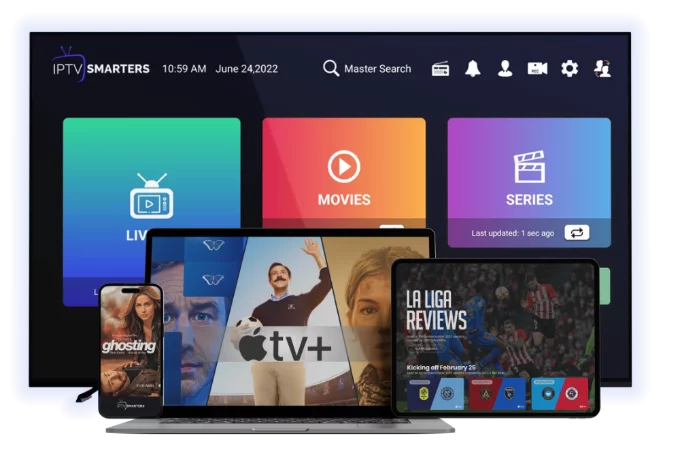
- IPTV Smarters Pro
- XCIPTV
- IBO Player
B. Manual XMLTV URL
You give the app two things: M3U URL + a separate XMLTV URL. Use this when:
- Your provider only gives M3U (no Xtream)
- You want a third-party EPG with better data (rytec.org, epgshare01)
4. Loading EPG in TiviMate
1. Settings → Playlists → tap your playlist
2. EPG sources → Add source
3. Choose URL and paste your XMLTV URL
4. Tap Update interval: every 12 hours is fine
5. Hit Update now — wait 30–90 seconds
6. Channels now show titles and times
5. Loading EPG in IPTV Smarters Pro
With Xtream Codes login, EPG loads automatically. To force a refresh:
1. Open the app → Settings (gear icon)
2. Auto Update EPG → ON
3. EPG Update Interval → 12 hours
4. Pull down on the channel list to manually refresh
6. Loading EPG on Smart TVs (Samsung/LG)
On native IPTV apps for Tizen and webOS:
1. Settings → EPG
2. Paste your XMLTV URL
3. Save and restart the app
4. EPG appears on the channel list
Some Samsung apps don't support EPG at all — switch to a player like Set IPTV or Smart IPTV.
7. EPG showing wrong times — fix it
This is the #1 EPG complaint. The cause is timezone mismatch.
XMLTV files are usually broadcast in UTC. Your IPTV app should auto-convert. If it's wrong:
- TiviMate: Settings → EPG → Timeshift → set to your timezone offset (e.g. `+1` for BST, `-5` for EST)
- IPTV Smarters: Settings → Time Format → choose 12h/24h, enable Auto Adjust Time
- XCIPTV: Settings → EPG → EPG Time Shift
Test with a known live show (the news at 6 PM) to confirm.
8. EPG missing for some channels
Two common reasons:
1. Channel ID mismatch — your M3U uses one ID (`tvg-id="bbc1.uk"`) but the EPG uses another (`bbc-one-uk`). Fix on provider side.
2. EPG only covers premium channels — some providers only EPG-tag the top 1000 channels, not the long tail. Ask provider for full XMLTV.
In TiviMate you can see this directly: a channel with EPG shows the current programme; one without shows just the name.
9. EPG taking forever to load
Modern XMLTV files are 50–200 MB compressed. On a slow Firestick or old Smart TV, parsing takes 1–3 minutes after a fresh install. Be patient on first load. Subsequent updates are incremental and fast.
If it never finishes:
- Check your XMLTV URL works in a browser (it should download a `.xml.gz` file)
- Try a `.xml` (uncompressed) version if the app has trouble with gzip
- Restart the app — sometimes the parser hangs
10. Best free third-party EPG sources
If your provider's EPG is poor, try:
- rytec.org — high quality EPG for European channels
- epgshare01.online — global coverage
- iptv-org/epg (GitHub) — open-source EPG for thousands of channels
Mix multiple sources by adding them as separate EPG sources in TiviMate.
11. Recording from EPG
Once EPG is loaded, you can schedule a recording in advance:
1. Open EPG (long-press on a channel in TiviMate)
2. Find the show you want
3. Tap → Record
4. Plug a USB drive into your device for storage
Quality IPTV providers maintain catch-up TV (last 7 days) so you can watch shows you missed without scheduling anything.
12. Need a working IPTV with proper EPG?
[Start a 24-hour free trial](/free-trial) — Xtream Codes login is emailed in 5 minutes and EPG loads automatically in TiviMate, Smarters and XCIPTV.
For setup help see [IPTV on Firestick](/blog-details/how-to-install-iptv-on-firestick) and [common IPTV issues](/blog-details/common-iptv-issues-and-fixes).
Frequently asked questions
XMLTV is the file format used to deliver EPG data. Your IPTV provider gives you an XMLTV URL (usually .xml or .xml.gz) which your IPTV app downloads and parses to display the TV guide.
Almost always a timezone mismatch. XMLTV is usually UTC. Set the timezone offset in your IPTV app (TiviMate: Settings → EPG → Timeshift, e.g. +1 for BST or -5 for EST).
30 seconds on a fast device, up to 3 minutes on Firestick or older Smart TVs. Modern XMLTV files are 50–200 MB compressed. After the first load, updates are incremental.
Either a channel-ID mismatch between M3U and XMLTV, or your provider only tags premium channels. Ask your provider for full XMLTV coverage, or supplement with a third-party source like rytec.org.
Yes — TiviMate Premium and XCIPTV both support EPG-based recording. Plug in a USB drive, set recording storage in app settings and schedule from the guide.
#epg
#xmltv
#tivimate
#setup