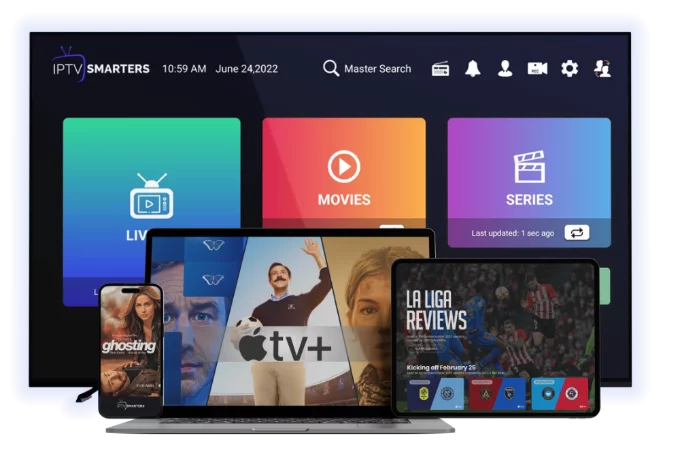
1. Why Firestick is the best £40 you'll spend on IPTV
The Amazon Fire TV Stick is the single most popular IPTV device in the UK and US — and for good reason. It runs the best IPTV apps natively, plugs into any HDMI port, costs £40-60, and outperforms most built-in smart TV apps. If you've struggled with IPTV on a Samsung or LG TV, switching to Firestick fixes 80% of complaints overnight.
This guide covers every Firestick model from the basic Stick HD to the Cube, and uses the official sideload route via Downloader.
2. Which Firestick should you buy for IPTV?
- Fire TV Stick HD (£40) — fine for HD channels, fights with 4K
- Fire TV Stick 4K (£60) — sweet spot, recommended for most users
- Fire TV Stick 4K Max (£70) — best price/performance, more RAM, faster Wi-Fi 6
- Fire TV Cube (£140) — overkill unless you want hands-free Alexa
For IPTV in 2026, buy the 4K Max. The extra RAM is what stops the buffering you'd see on the basic stick.
3. Before you start — what you'll need
- Firestick plugged into your TV
- Internet connection set up
- Your IPTV provider credentials (M3U URL or Xtream Codes login)
- About 10 minutes
4. Step 1: enable apps from unknown sources
Firestick blocks third-party apps by default. To allow IPTV apps:
1. From the Home screen, go to Settings (gear icon, top right)
2. Select My Fire TV → Developer Options
3. Enable Apps from Unknown Sources
4. Confirm when prompted
If you don't see Developer Options, click About and tap Fire TV Stick seven times — it'll appear.
5. Step 2: install Downloader
Downloader is the tool we'll use to sideload IPTV apps:
1. Press the microphone button on your remote and say "Downloader"
2. Select the orange Downloader app and click Get / Download
3. Wait for it to install, then Open
4. Allow permissions on first launch
6. Step 3: install IPTV Smarters Pro (free, easiest)
1. In Downloader, go to the Browser tab
2. Type the URL: iptvsmarters.com/iptvsmarters.apk
3. Press Go and wait for download (10–30 seconds)
4. Click Install when it finishes
5. Click Done, then back in Downloader click Delete to free space
6. Go back to Home → IPTV Smarters appears under "Your Apps"
7. Step 4: install TiviMate (premium, best experience)
TiviMate is the best IPTV player on Firestick. It's £20/year for the premium version (well worth it).
1. In Downloader, type: tivimate.com
2. Visit the site, find the latest APK, download
3. Install — same process as Smarters
4. Open and choose Add Playlist → Xtream Codes (preferred)
8. Step 5: load your IPTV credentials
For IPTV Smarters:
1. Open the app, click Add New User
2. Choose Login with Xtream Codes API
3. Name: anything
4. URL: server URL from your provider (e.g. `http://server.example:8080`)
5. Username and password from provider
6. Click Add User — channels load in 30–60 seconds
For TiviMate:
1. Choose Add Playlist → Enter URL
2. Or M3U URL if Xtream Codes isn't supported
3. EPG loads automatically with Xtream Codes
9. Step 6: settings to set once for the best experience
After your channels load:
- Settings → Playback → Buffer Size: 3-5 seconds
- Settings → Playback → Decoder: Hardware (fall back to Software if any channel won't play)
- Settings → Auto-reconnect: ON
- Settings → Background updates: ON
- Settings → Hardware acceleration: ON
10. Putting IPTV apps on the home screen
Firestick hides sideloaded apps. To pin them:
1. Press Home
2. Scroll to the Your Apps & Channels row, click See All
3. Highlight IPTV Smarters → press the menu button (≡) on remote
4. Choose Move to Front
11. Common Firestick IPTV problems
- App keeps closing → restart Firestick, clear cache (Settings → Apps → Manage → IPTV Smarters → Clear Cache)
- Buffering on 4K → switch to 5GHz Wi-Fi or use ethernet adapter (Amazon sells one for £15)
- Channels load slowly → check Wi-Fi signal strength in Network settings
- Remote skipping ahead → low remote battery, replace
- Sound but no picture → switch decoder from Hardware to Software in app settings
12. Should you use a VPN on Firestick?
Yes — Firestick is the easiest device to add a VPN to. UK and EU ISPs increasingly throttle IPTV traffic. NordVPN or Surfshark on Firestick takes 2 minutes:
1. Search "NordVPN" in the Firestick app store
2. Install and log in
3. Click Quick Connect
4. Open IPTV Smarters — buffering issues usually disappear
See our [VPN with IPTV guide](/blog-details/how-to-use-vpn-with-iptv) for details.
13. The 5-minute Firestick checklist
1. Apps from Unknown Sources: ON
2. Downloader installed
3. IPTV Smarters or TiviMate sideloaded
4. Xtream Codes login entered
5. Buffer 3–5s, hardware decode ON
6. Pinned to home screen
7. (Optional but recommended) VPN installed
14. Need IPTV credentials?
If you don't have an IPTV provider yet, [start a free 24-hour trial](/free-trial) and we'll send your Xtream Codes login by email — set up takes 5 minutes from there.
For other devices, see [how to install IPTV on smart TV](/blog-details/how-to-install-iptv-on-smart-tv) and [IPTV on Apple TV](/blog-details/how-to-install-iptv-on-apple-tv).
Frequently asked questions
Yes — sideloading apps and using IPTV from a licensed provider is fully legal in the UK and US. The legality depends on your IPTV provider, not the Firestick.
The Fire TV Stick 4K Max (£70) is the best choice for IPTV in 2026 — more RAM, faster Wi-Fi 6, and handles 4K streams reliably. The basic Fire TV Stick HD works for HD channels only.
For most IPTV apps, yes — they're not in the official Amazon Appstore. IPTV Smarters has a Lite version in the store, but the full version requires Downloader sideload.
Most often Wi-Fi signal or ISP throttling. Switch to ethernet (Amazon sells a £15 adapter), use 5GHz Wi-Fi, set buffer to 3–5 seconds, and consider a VPN if your ISP throttles streaming.
Yes — they don't conflict. Many users have both installed: TiviMate for daily viewing (better UI), IPTV Smarters as a fallback. The same Xtream Codes login works in both.
#firestick
#fire tv
#setup
#iptv smarters
#tivimate