1. Why use IPTV on Windows?
A Windows PC is the most flexible IPTV device you own. Big monitor or 4K TV via HDMI, full keyboard for searching films, easy file management for recordings, and native VPN support. It's the best place to test new providers before committing to a Smart TV setup.
2. Best IPTV players on Windows in 2026
1. VLC Media Player (free)
— the universal default- Open any M3U URL in seconds
- Plays every codec under the sun
- No EPG, no nice UI — just channels in a list
- Best for: testing, debugging streams, watching one-off channels
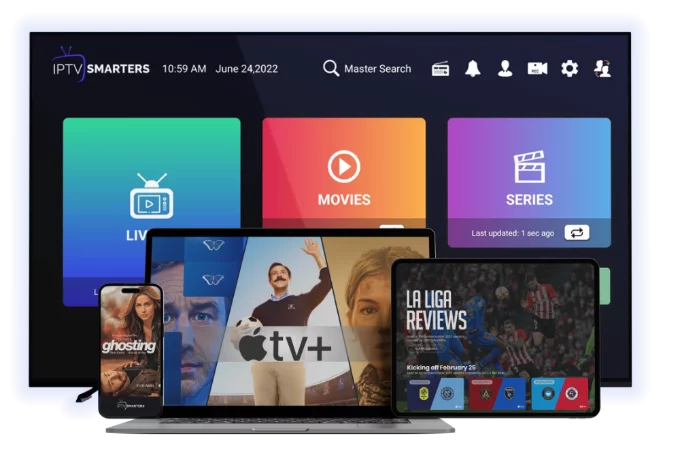
2. IPTV Smarters Pro for Windows (free)
— the most polished- Full Xtream Codes + M3U support
- Built-in EPG, films, series with metadata
- Dark theme, looks the same as the mobile app
- Best for: daily use, the closest thing to TiviMate on Windows
3. MyIPTV Player (free, Microsoft Store)
— clean and modern- Designed for Windows 10/11
- Live TV + EPG + recording
- Slightly outdated UI but very stable
- Best for: keyboard/mouse use without installing third-party software
4. Kodi (free)
— power-user option- Install PVR IPTV Simple Client add-on
- Add M3U URL + EPG XMLTV URL
- Combine with film/TV library scrapers
- Best for: people who want one app for IPTV + local media library
5. ProgDVB (free / paid)
— niche but excellent for recording- Best DVR-style recording on Windows
- Supports IPTV, DVB-T, DVB-S
- Best for: heavy recorders
3. Quick start with VLC (60 seconds)
1. Open VLC
2. Media → Open Network Stream (Ctrl+N)
3. Paste your M3U URL
4. Play
5. Channels appear in the playlist (View → Playlist, or Ctrl+L)
For Xtream Codes you can't use VLC directly — use Smarters or Kodi instead.
4. IPTV Smarters Pro on Windows — full setup
1. Download from `iptvsmarters.com` (Windows installer)
2. Install and launch
3. Add New User
4. Choose:
- Xtream Codes API if your provider supplies it (recommended)
- M3U URL otherwise
5. Enter credentials → save
6. Channels, films and series load in 30–60 seconds
7. EPG starts populating in the background
5. Hardware acceleration — for smooth 4K
A modern Intel or AMD CPU can decode H.264/H.265/HEVC in dedicated silicon, freeing the rest of the PC. Enable it:
In VLC:
1. Tools → Preferences → Input/Codecs
2. Hardware-accelerated decoding: choose Direct3D 11 Video Acceleration (Windows 10/11)
3. Restart VLC
In IPTV Smarters:
- Already on by default. Verify in Settings → Player Settings → Hardware Decoding = ON.
In Kodi:
1. Settings → Player → Videos
2. Allow hardware acceleration - DXVA2: ON
Without hardware acceleration, 4K HEVC streams will stutter even on a fast CPU.
6. NVIDIA / AMD GPU drivers
Keep them current. NVIDIA's recent drivers added much better HEVC and AV1 hardware decode. AMD's RDNA 3 GPUs also handle modern codecs efficiently. An old driver = stuttery 4K.
7. Watching IPTV on a 4K monitor or TV
- Connect via HDMI 2.0 or DisplayPort 1.4 (HDMI 1.4 is limited to 4K @ 30 Hz, which looks awful on sport)
- Right-click desktop → Display Settings → set resolution to 3840×2160 @ 60 Hz
- Enable HDR if your monitor/TV supports it (Settings → System → Display → HDR)
8. VPN with IPTV on Windows
Windows is the easiest place to add a VPN. Install NordVPN, Surfshark or ExpressVPN; click connect; your IPTV traffic is encrypted, ISP throttling stops, and many regional restrictions disappear. See [VPN with IPTV guide](/blog-details/how-to-use-vpn-with-iptv).
9. Recording IPTV on Windows
VLC: Hit the Record button on the toolbar (it's a red dot — enable Advanced Controls in View). Streams save to `Documents/Videos`.
Kodi: Schedule from EPG → recordings save to a folder you specify in PVR settings.
ProgDVB: Best in class. Schedule by EPG, by name, by series. Supports remote recording over a home network.
10. Common Windows IPTV problems
"Stream not found" / 404
- Wrong M3U URL — copy-paste again from your provider email
- Account expired — log into provider dashboard to check
- ISP block — try with VPN
Audio out of sync
- VLC: Tools → Track Synchronization → adjust Audio track synchronization
- Smarters: Player Settings → Audio Sync
Black screen with sound
- Disable hardware acceleration as a test (then re-enable with a different decoder)
- Update GPU drivers
Stuttering on 4K
- Check CPU usage in Task Manager — should be under 30% with hardware accel on. If higher, hardware accel isn't actually working.
11. Hardware: what you need
For 4K live IPTV smoothly:
- Intel 8th gen or newer / AMD Ryzen 3000 or newer
- 8GB RAM
- A GPU from the last 5 years (Intel UHD 630, NVIDIA GTX 1050+, AMD RX 5500+)
- 25 Mbps internet, ideally wired
Anything older works fine for 1080p HD streams.
12. Try IPTV on Windows for free
[Start a 24-hour free trial](/free-trial) — Xtream Codes login arrives by email and works in IPTV Smarters Pro for Windows in under 5 minutes.
For other platforms see [IPTV on Mac](/blog-details/iptv-on-mac), [IPTV on Firestick](/blog-details/how-to-install-iptv-on-firestick) and [best IPTV players 2026](/blog-details/best-iptv-players-2026).
Frequently asked questions
IPTV Smarters Pro for Windows for everyday use — full Xtream Codes support, EPG and a clean interface. VLC for quick testing of streams. Kodi for users who want IPTV alongside a local film library.
Not directly — VLC only takes M3U URLs. If you only have Xtream Codes credentials, use IPTV Smarters or Kodi (with PVR IPTV Simple Client) instead.
Hardware decoding isn't enabled or your GPU driver is old. In VLC enable Direct3D 11 video acceleration; update your NVIDIA/AMD/Intel GPU driver. CPU usage should stay below 30% on 4K HEVC.
Yes — VLC has a basic record button, Kodi has scheduled recording via PVR, and ProgDVB has the best DVR features (record by name, by series, by EPG).
Recommended in the UK and EU where ISPs throttle IPTV traffic. NordVPN, Surfshark and ExpressVPN all install in 2 minutes on Windows and noticeably reduce buffering.
#windows
#pc
#vlc
#kodi
#setup