1. Why Android TV box for IPTV?
Android TV boxes give you the most flexible IPTV experience of any device — full Google Play Store access, sideloading support, and the best IPTV apps run natively. The downside is buying the wrong box: cheap no-name Android boxes from Amazon for £30 are slow, full of bloatware, and won't update. Get the right box and you'll have a great experience for 4–5 years.
2. The 4 best Android TV boxes for IPTV in 2026
1. NVIDIA Shield TV Pro (£200)
— the gold standard- Tegra X1+ chip, the fastest in any streaming box
- 8 years of Android updates and counting
- AI upscaling makes HD look near-4K
- USB ports for ethernet, storage, even a webcam
- Overkill for most, but lifetime hardware
2. Xiaomi Mi Box S 2nd Gen (£60)
— best value- Official Google certified Android TV
- 4K HDR, Dolby Vision
- Plays IPTV smoothly with TiviMate
- Limited RAM (2GB) — close apps you don't need
3. Onn 4K Pro / Walmart Onn (US, $50)
— bargain pick- Surprisingly capable Google-certified box
- 4K HDR, decent RAM
- Available US-only
4. Mecool KM2 Plus (£90)
— Android TV with Netflix L1- Google certified, full 4K Netflix supportly
- 4GB RAM handles IPTV + Netflix simultaneous
Avoid: any "Android Box" without "Android TV" certification — they're typically running stripped-down Android Mobile, miss key features, and don't get updates.
3. The 3 best IPTV apps for Android TV box
1. TiviMate (£20/year premium)
— the best IPTV player anywhere- Beautiful, remote-friendly interface
- Built-in EPG, recording, picture-in-picture
- Multiple playlists, groups, favourites
- Worth every penny
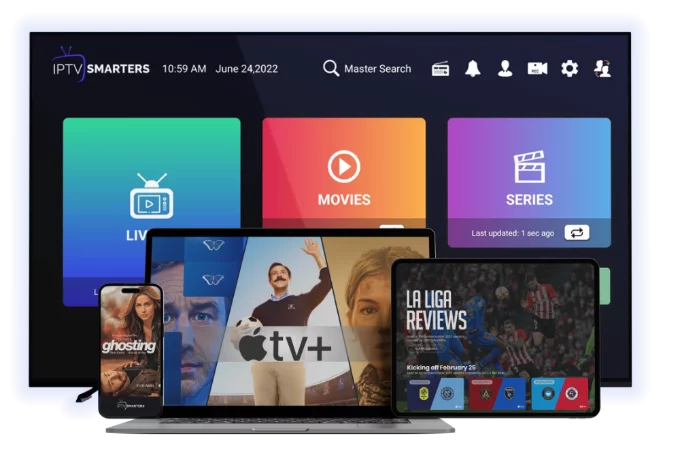
2. IPTV Smarters Pro (free)
— solid free option- Same app as Firestick / Apple TV
- Familiar interface
- Xtream Codes + M3U support
3. XCIPTV (free, ad-supported)
— feature-rich free- Multi-screen support
- More configurable than Smarters
- Has ads in free version
4. Step-by-step: setup IPTV on Android TV box
1. From the home screen, open Google Play Store
2. Search "TiviMate" or "IPTV Smarters Pro"
3. Install and open
4. Add playlist:
- For TiviMate: choose Add Playlist → Enter URL (M3U) or Xtream Codes
- For Smarters: Add New User → Login with Xtream Codes API
5. Enter your IPTV provider credentials (URL + username + password)
6. Channels and EPG load in 30–60 seconds
5. 4K HDR — get the picture you paid for
Android TV often defaults to 1080p. To enable 4K:
1. Settings → Display & Sound → Advanced Display Settings
2. Resolution: choose 4K UHD (60Hz)
3. HDR: enable if your TV supports it
4. Match Content Frame Rate: ON
5. Match Content Dynamic Range: ON
In TiviMate:
- Settings → Playback → Output Type: Hardware
- Settings → Playback → Resolution: Auto
6. Wired ethernet > Wi-Fi
Even on a flagship box, ethernet is more reliable for live IPTV. Plug the box's ethernet port into your router (or a powerline adapter). Buffering drops by 80%.
NVIDIA Shield has gigabit ethernet built in. Xiaomi Mi Box S doesn't have ethernet — buy a USB ethernet adapter for £10.
7. Common Android TV box IPTV problems
- Lag when scrolling channels → upgrade box (cheap boxes don't have RAM)
- Buffering → switch to ethernet, increase buffer to 5s
- EPG missing → use Xtream Codes login instead of plain M3U
- App freezes → clear cache (Settings → Apps → TiviMate → Storage → Clear Cache)
- No sound on some channels → switch decoder (TiviMate: Settings → Playback → Decoder → Software)
8. Should you sideload apps from outside the Play Store?
Sometimes yes. Android TV boxes (unlike Apple TV) allow it via the Downloader app or Send Files to TV. You might need this for:
- Older versions of IPTV apps
- Custom skins or forks
- Apps not available in your region
To enable: Settings → Device → Apps → Security & Restrictions → Unknown Sources → ON.
9. Recording IPTV on Android TV box
TiviMate Premium and XCIPTV both support recording. To set up:
1. Plug a USB drive (32GB+) into the box
2. In TiviMate: Settings → Recording → Storage → choose USB drive
3. Schedule recordings from the EPG, or hit Record while watching
NVIDIA Shield works best for this because of its USB 3.0 ports.
10. Should you add a VPN?
Yes if your ISP throttles IPTV (UK BT, Virgin, EE all do at peak times). Install NordVPN or Surfshark from the Play Store, connect, and your IPTV traffic is encrypted. See our [VPN with IPTV guide](/blog-details/how-to-use-vpn-with-iptv).
11. Need IPTV credentials?
Want to test IPTV on your Android TV box risk-free? [Start a free 24-hour trial](/free-trial) — Xtream Codes login arrives by email and works in TiviMate, IPTV Smarters and XCIPTV.
For other platforms see [IPTV on Firestick](/blog-details/how-to-install-iptv-on-firestick) and [IPTV on Apple TV](/blog-details/how-to-install-iptv-on-apple-tv).
Frequently asked questions
NVIDIA Shield TV Pro (£200) is the gold standard — fastest chip, longest software support, AI upscaling. For best value, the Xiaomi Mi Box S 2nd Gen (£60) is excellent. Avoid no-name "Android Box" devices without proper Android TV certification.
Yes — TiviMate is in the Google Play Store on any Android TV certified box. On non-certified Android boxes, you can sideload it via Downloader or Send Files to TV.
Most £30 Android boxes have 1-2GB of RAM and slow chips. They struggle with modern IPTV apps. Upgrading to a Xiaomi Mi Box S or Onn 4K Pro at £50–60 fixes this.
Recommended in the UK and EU because ISPs throttle IPTV traffic. Install NordVPN or Surfshark from the Play Store — adds 2 minutes to setup and significantly improves stream stability.
Yes — TiviMate Premium and XCIPTV both support DVR-style recording. Plug in a USB drive, set the storage path in app settings, and schedule recordings from the EPG.
#android tv box
#nvidia shield
#tivimate
#setup