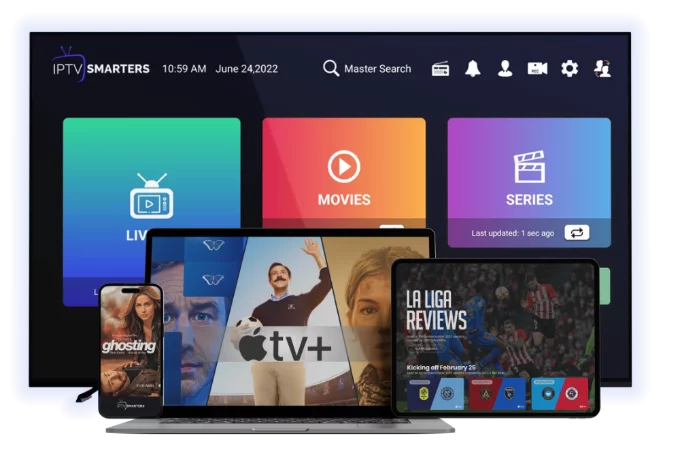
1. iPhone and iPad as IPTV devices
Apple devices are excellent IPTV players — sharp displays, fast hardware, reliable software. iPhone is great for watching while travelling, on the train, or in bed. iPad turns into a portable TV. And both can AirPlay to Apple TV when you want a bigger screen.
This guide covers the three best IPTV apps in the App Store, how to load credentials, and the iOS-specific tips that make a real difference (picture-in-picture, AirPlay, mobile data settings).
2. The 3 best IPTV apps for iPhone & iPad in 2026
1. IPTV Smarters Pro (free)
— best free option- Same app you'd use on Firestick
- Xtream Codes + M3U support
- Familiar interface across all your devices
2. iPlayTV (£0.99 one-off)
— best paid app- Cleaner, more polished UI
- Faster channel switching
- Same £0.99 buys it on iPhone, iPad, and Apple TV
3. GSE Smart IPTV (free + £6 to remove ads)
— most features- Picture-in-picture, parental control, recording
- Multiple playlists, favourites, sleep timer
- Ads in free version
For most users, IPTV Smarters Pro is the best starting point — free, reliable, and works exactly the same as on your TV.
3. Step-by-step: install IPTV Smarters Pro on iPhone / iPad
1. Open the App Store
2. Search "IPTV Smarters Pro"
3. Install (free)
4. Open and tap Add New User
5. Choose Login with Xtream Codes API (preferred) or M3U URL
6. Enter:
- Name: anything memorable
- URL: server URL from provider
- Username & password: from provider
7. Tap Add User — channels load in 30–60 seconds
4. Step-by-step: install iPlayTV on iPhone / iPad
1. App Store → search "iPlayTV"
2. Buy for £0.99
3. Open and tap the + in the top corner
4. Add Remote Playlist URL (M3U) or Xtream Codes
5. Save — channels load with EPG
5. Picture-in-picture — keep watching while you do other things
On iPad and iPhone (iOS 14+), you can shrink the IPTV stream to a floating window:
1. Start watching a channel
2. Swipe up (or press home) — the stream automatically shrinks to a corner
3. Tap to drag, pinch to resize, double-tap to expand back
This works in iPlayTV and GSE Smart IPTV out of the box. IPTV Smarters supports it but you may need to enable it in settings.
6. AirPlay — send IPTV to your Apple TV or AirPlay-compatible TV
1. Start a channel in your IPTV app
2. Tap the AirPlay icon (rectangle with triangle)
3. Choose your Apple TV or AirPlay 2 TV (Samsung, LG, Sony all support this)
4. The stream switches to your TV
This is genuinely useful — you can browse channels on your phone (faster than a TV remote) and watch on the big screen.
7. Watching on mobile data — what you need to know
IPTV uses about 0.5–1.5 GB per hour for HD, 3–5 GB per hour for 4K. On a 5G connection, picture quality is excellent. On 4G it's fine for HD. On a metered plan, set your IPTV app to HD (not 4K) when on mobile data.
In iOS settings: Settings → Cellular → IPTV Smarters → ON (or toggle off entirely if you only want it on Wi-Fi).
8. Cast to non-Apple TVs (Chromecast, smart TVs)
- Chromecast: most iOS IPTV apps don't support Chromecast directly. Workaround: use Replica or AirScreen on the receiving device.
- Samsung / LG smart TVs: usually support AirPlay 2 — works the same as Apple TV.
- Roku: limited AirPlay support depending on model.
9. Common iPhone / iPad IPTV problems
- App force-closes → reinstall, then re-add login
- Channels load slowly → switch to Xtream Codes from M3U for instant switching
- AirPlay drops mid-stream → check Wi-Fi signal on both devices
- No sound on certain channels → tap the speaker icon in the player to switch audio track
- Stream is laggy on cellular → switch quality to HD or 720p in app settings
10. Should you use a VPN on iPhone / iPad?
Yes if you're in the UK or EU and your ISP throttles IPTV. Install NordVPN, Surfshark or ExpressVPN from the App Store, log in, connect — IPTV traffic is then encrypted. iOS supports VPN apps natively from iOS 9 onwards.
11. Background playback and audio-only mode
Want to listen to a news channel while doing other things? In iPlayTV, swipe up after starting a channel — audio continues. GSE Smart IPTV has an explicit "audio only" mode in settings. IPTV Smarters Pro stops on app switch unless picture-in-picture is enabled.
12. Need IPTV credentials?
If you don't have a provider yet, [start a free 24-hour trial](/free-trial). Login arrives by email — set up takes 5 minutes on iPhone or iPad.
For other platforms see [IPTV on Apple TV](/blog-details/how-to-install-iptv-on-apple-tv) and [IPTV on smart TV](/blog-details/how-to-install-iptv-on-smart-tv).
Frequently asked questions
IPTV Smarters Pro is the best free option and works on all platforms. iPlayTV (£0.99) is the most polished paid app. GSE Smart IPTV has the most features (recording, parental control) — free with ads, £6 to remove them.
Yes — every IPTV app on iOS supports AirPlay. Tap the AirPlay icon in the player and choose your Apple TV. The stream switches to your TV instantly.
About 0.5–1.5 GB per hour for HD, 3–5 GB per hour for 4K. On a metered mobile plan, set the IPTV app to HD or 720p when on cellular.
GSE Smart IPTV is the only major iOS IPTV app with proper recording support. iPlayTV and IPTV Smarters don't have built-in DVR features on iOS.
Yes — iPlayTV, GSE Smart IPTV and IPTV Smarters all support picture-in-picture on iPad. Start a channel, swipe up to home screen, and the stream becomes a floating window.
#iphone
#ipad
#ios
#mobile iptv