Back to all articles
Setup
How to Install IPTV on Apple TV (2026): Complete Setup Guide
· 4 min read
1. Apple TV is a great IPTV device — once set up properly
Apple TV 4K (3rd gen, 2022 onwards) is one of the most powerful streaming boxes you can buy. The A15 chip handles 4K HDR effortlessly, the interface is the slickest on any platform, and AirPlay lets you mirror your phone or laptop. The catch: tvOS is locked down compared to Android, so app choice is more limited and there's no sideloading.
This guide covers the three best IPTV apps for Apple TV in 2026, how to load your credentials, and the picture-quality settings that make a real difference.
2. Which Apple TV models work with IPTV?
- Apple TV 4K (any generation) — recommended, handles all IPTV apps and 4K streams
- Apple TV HD (4th gen) — works fine for HD channels, struggles a bit on 4K
- Apple TV (3rd gen and older) — no app support, can't run modern IPTV apps
If your Apple TV is from before 2015, it can't install any of the apps below.
3. The 3 best IPTV apps for Apple TV in 2026
- iPlayTV (£0.99 one-off) — best paid app, polished interface, great EPG, fast channel switching
- GSE Smart IPTV (free + £6 to remove ads) — feature-rich, supports parental control and IPTV recording
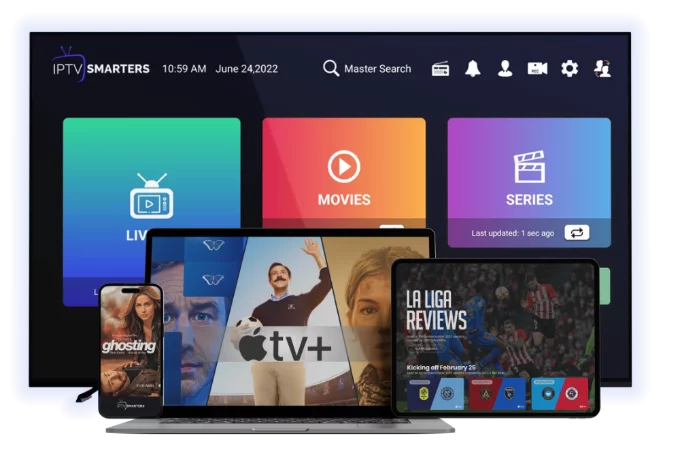
- IPTV Smarters Pro (free) — same app you get on Firestick / Android TV, familiar interface
For a casual viewer, iPlayTV's £0.99 one-off is the best value. For power users, GSE Smart IPTV does more.
4. Step-by-step: install iPlayTV on Apple TV
1. From the Apple TV home screen, open the App Store
2. Search "iPlayTV"
3. Click Get (or buy for £0.99)
4. Open the app once installed
5. Tap + to add a playlist
6. Choose Remote Playlist URL for M3U, or Xtream Codes API
7. Enter the credentials from your IPTV provider
8. Wait 30–60 seconds — channels load with EPG
5. Step-by-step: install IPTV Smarters Pro on Apple TV
1. App Store → search "IPTV Smarters Pro"
2. Install (free)
3. Open and accept the disclaimer
4. Add login: Xtream Codes API is preferred
5. Enter URL, username, password
6. EPG, channels, VOD and series all load together
6. Step-by-step: install GSE Smart IPTV on Apple TV
1. App Store → search "GSE Smart IPTV"
2. Install
3. Open and tap + in the top-right
4. Choose Xtream Codes Login or Remote URL for M3U
5. Enter credentials
6. To remove ads: in-app purchase £6 once
7. AirPlay — stream IPTV from iPhone or Mac
A clever workaround: any IPTV app on iPhone or iPad can be AirPlayed to Apple TV. This is useful if:
- You want to test an app before committing to Apple TV
- A specific iPhone IPTV app is better than the Apple TV equivalent
- You're using a service that has an iPhone-only app
To AirPlay:
1. On iPhone, open your IPTV app and start a channel
2. Tap the AirPlay icon (rectangle with triangle)
3. Choose your Apple TV
4. The stream switches to your TV
8. Picture quality settings — get real 4K
Apple TV has surprisingly important picture settings:
- Settings → Video and Audio → Format: set to 4K HDR Dolby Vision if your TV supports it (otherwise 4K SDR 60Hz)
- Match Content → enable both Dynamic Range and Frame Rate (this is what makes a real visual difference)
- Resolution: 4K
- Audio Format: best quality available
Without these settings, you may be watching upscaled HD even on 4K channels.
9. Common Apple TV IPTV problems
- App freezes when loading channels → reinstall, then re-add login
- Buffering on 4K only → switch to 5GHz Wi-Fi or use an ethernet adapter
- EPG not showing → ensure Xtream Codes login is used (M3U requires separate EPG URL)
- Audio out of sync → in app, look for "Audio Delay" — try +200ms
- Channel loading takes 5+ seconds → known limitation of M3U-only — use Xtream Codes for instant switching
10. Should you use a VPN with Apple TV?
Apple TV supports VPN apps natively from tvOS 17 onwards. NordVPN, Surfshark and ExpressVPN all have Apple TV apps. Install one if:
- Your ISP throttles streaming (UK BT, Sky, Virgin)
- You travel with your Apple TV
- You want geo-blocked channels
For installation, open the App Store and search the VPN by name — same process as any other app.
11. Apple TV vs Firestick for IPTV — which is better?
- Apple TV: better picture, better interface, longer software support, but fewer free IPTV apps and no sideloading. £150-170.
- Firestick 4K Max: cheaper, more flexible, supports any IPTV app, but uglier UI and shorter lifespan. £70.
For Apple users who already own AirPods and an iPhone, Apple TV slots in nicely. For best raw IPTV value, Firestick wins.
12. Need IPTV credentials?
If you're setting up a new IPTV service, [try IPTVFree24 free for 24 hours](/free-trial). We'll email Xtream Codes credentials that work in iPlayTV, GSE Smart IPTV and IPTV Smarters in 5 minutes.
For other platforms, see [IPTV on Firestick](/blog-details/how-to-install-iptv-on-firestick) and [IPTV on smart TV](/blog-details/how-to-install-iptv-on-smart-tv).
Frequently asked questions
iPlayTV (£0.99 one-off) is the best paid option for most users. GSE Smart IPTV is the most feature-rich. IPTV Smarters Pro is the best free option and matches what you'd use on Firestick or Android TV.
No — tvOS doesn't allow sideloading. You're limited to apps in the official App Store. The good news is the major IPTV apps are all there.
Yes — Apple TV 4K is one of the best 4K IPTV devices available. Just enable "Match Content → Dynamic Range and Frame Rate" in Settings to get true 4K output to your TV.
For most users, yes. iPlayTV has a faster channel switcher, cleaner EPG and better remote handling than the free options. £0.99 is a one-off purchase, not a subscription.
Yes — any iPhone IPTV app can stream to Apple TV via AirPlay. This is a good workaround if a specific iPhone app suits you better than the Apple TV equivalents.
#apple tv
#tvos
#setup
#iplaytv
#gse